
How to Move Google or Microsoft Authenticator to a New Phone
Switching phones? Move your 2FA codes with Google Authenticator sync or export, Microsoft Authenticator iCloud backup, or by re-adding each account safely.
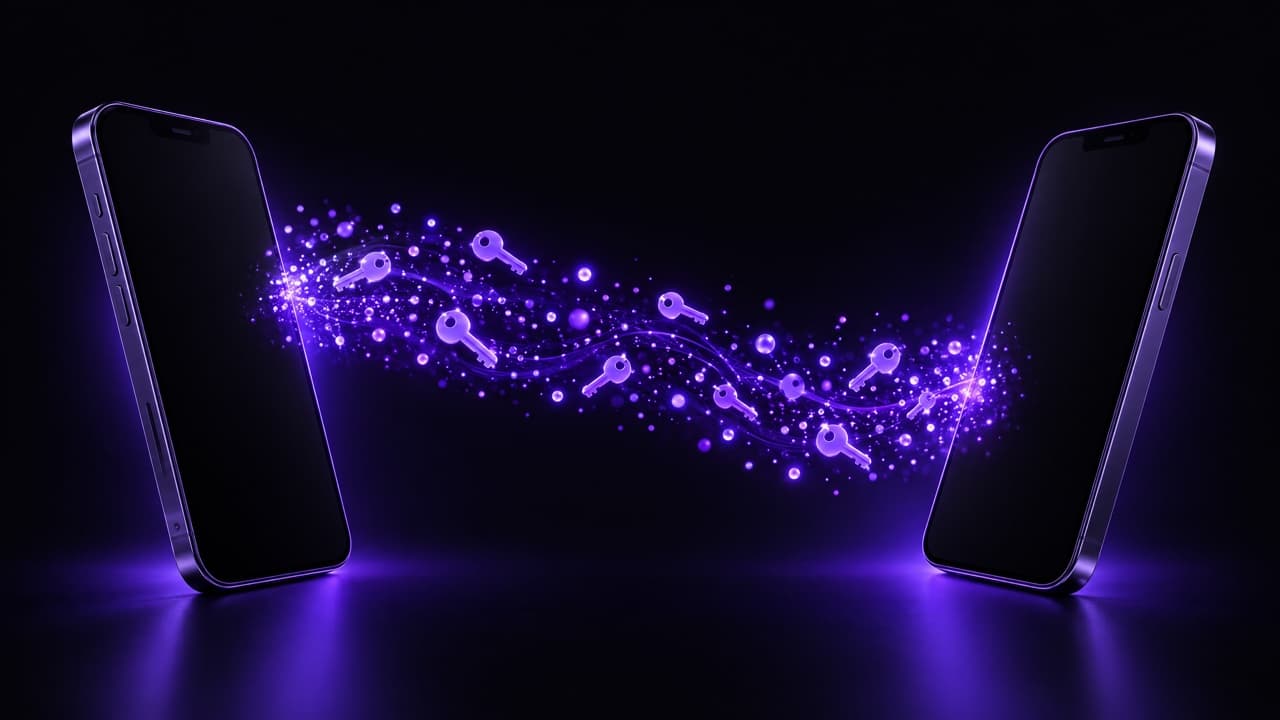
Keep your old phone working until the move is finished. Then use the authenticator's own transfer: Google Authenticator syncs codes to your Google Account (or exports them as QR codes), and Microsoft Authenticator restores them from an iCloud backup tied to a personal Microsoft account. For any app without a transfer feature, re-add each account on the new phone from that service's security settings, and only then delete the old copy.
Before you start
- Don't wipe or trade in the old phone yet. It's the only thing that can generate your current codes.
- Find your backup codes. If a transfer fails, they're your way back in. Our guide for a lost phone with 2FA explains where services keep them.
- Make a list of accounts in the old authenticator, so you can tick them off on the new phone.
Google Authenticator
According to Google's help page, there are two ways:
- Sync with your Google Account (Authenticator 4.0 or later on iPhone). If you were signed in on the old phone, install Google Authenticator on the new one, sign in with the same Google Account and the codes appear. Check that every account shows up before you go further.
- Transfer with QR codes, for codes not saved to a Google Account. On the old phone, open the menu and choose the option to transfer or export codes, select the accounts and the app shows one or more QR codes. On the new phone, choose import and scan them. Large sets are split into several QR codes; scan them all.
Microsoft Authenticator
Microsoft's backup and recovery guide describes the iPhone flow:
- On the old phone, make sure iCloud and iCloud Keychain are on, then turn on backup in Authenticator's settings. You need a personal Microsoft account as the recovery account.
- On the new iPhone, signed in to the same Apple Account, install Authenticator and choose to restore from backup before adding any accounts.
- Sign in with the recovery Microsoft account. Some work or school accounts ask you to verify again after the restore.
A backup made on an iPhone can't be restored on Android, and the other way round. When switching platforms, use the method below.
Any app: re-add each account
This works with every service and every authenticator, including when moving to a different app:
- Sign in to the service on a computer.
- Open its security or two-factor settings and choose to change the authenticator app, or turn 2FA off and on again.
- Scan the new QR code with the authenticator on the new phone and enter the 6-digit code to confirm.
- Save the new backup codes if the service shows them.
- Repeat for each account, then remove the entries from the old phone.
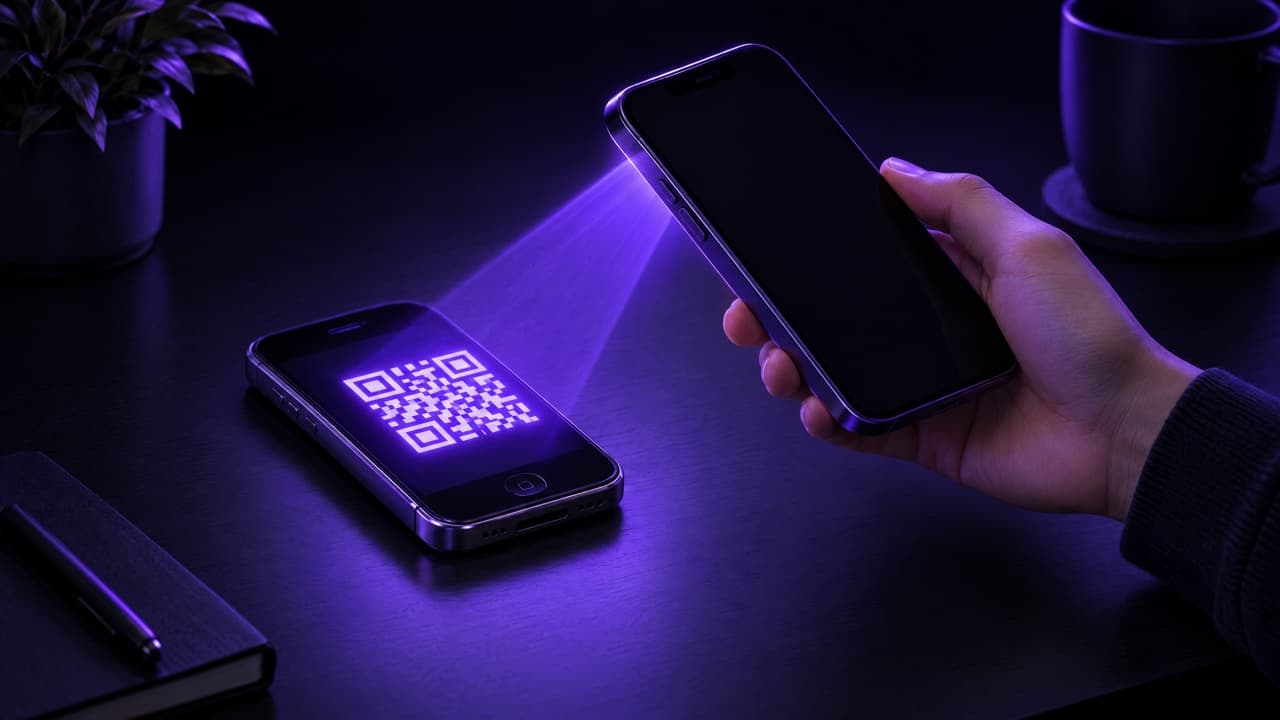
It takes a few minutes per account, but it's also the moment to clean up: delete codes for accounts you no longer use and turn on 2FA for important ones that don't have it yet.
Moving to Ring
Ring is an authenticator for iPhone that keeps codes encrypted on your device, with Face ID, folders and Home Screen widgets. To move to Ring, use the re-add method above: scan each service's QR code with Ring, confirm with a code, and remove the old entry when it works. Because Ring stores codes only on the device, keep your backup codes somewhere safe and repeat the same process the next time you change phones.
After the move
- Sign in to a couple of accounts using codes from the new phone to confirm everything works.
- Only then reset the old phone.
- If an account can't be moved because you no longer have the old phone, go through that service's recovery with your backup codes.
FAQ
Do authenticator codes transfer automatically with an iPhone backup?
Not always. It depends on the app: some use their own cloud sync or backup, others keep codes only on the device. Check that your codes appear in the new phone's app before erasing the old one.
Can I move Google Authenticator without the old phone?
Only if the codes were synced to your Google Account. Otherwise you need each service's backup codes or account recovery.
Is it safe to export codes as a QR code?
The QR code contains your secrets. Scan it directly with the new phone, don't screenshot it, and don't share it with anyone.
Keep reading
 Ring••6 min read
Lost Your Phone with Your 2FA Codes? How to Get Back Into Your Accounts
Lost, stolen or reset the phone with your authenticator codes? Get back in with backup codes, signed-in devices and account recovery, then prevent a repeat.
 Ring••3 min read
Discord 2FA: How to Enable an Authenticator App and Save Backup Codes
Enable Discord two-factor authentication with an authenticator app, download backup codes, and fix 2FA codes that don't work or a lost phone.
 Ring••3 min read
How to Set Up Two-Factor Authentication with an Authenticator App
What TOTP codes are, why an authenticator app beats SMS, and how to turn on 2FA for any account in a few minutes without locking yourself out.