
Instagram Two-Factor Authentication: Set Up an Authenticator App
Turn on Instagram two-factor authentication with an authenticator app in Accounts Center, save backup codes and get back in if codes don't arrive.
To turn on Instagram two-factor authentication, open your profile, tap the menu, then Accounts Center → Password and security → Two-factor authentication, choose the account and pick Authentication app. Scan the setup key or QR code with an authenticator app, enter the 6-digit code it shows, and save the backup codes Instagram offers. From then on, signing in on a new device needs your password and a code from the app.
Why use an authenticator app instead of SMS
Instagram can send login codes by text message, but SMS codes can be stolen through SIM swapping or phishing and sometimes don't arrive when you travel. An authenticator app generates codes on your phone, offline, every 30 seconds. Our comparison of authenticator apps, SMS and passkeys explains the difference in detail.
Turn on Instagram 2FA step by step
Instagram moves menus between app versions, so the labels on your phone may differ slightly; search the settings for "two-factor" if you can't find them.
- Open Instagram, go to your profile and tap the menu in the top-right corner.
- Tap Accounts Center, then Password and security.
- Tap Two-factor authentication and choose the Instagram account.
- Choose Authentication app and continue.
- Instagram shows a key or offers to open an authenticator on the same phone. Add the account in your authenticator by scanning the QR code or pasting the key.
- Enter the 6-digit code from the authenticator in Instagram and confirm.
- Save the backup codes when Instagram shows them (see below).
Instagram backup codes
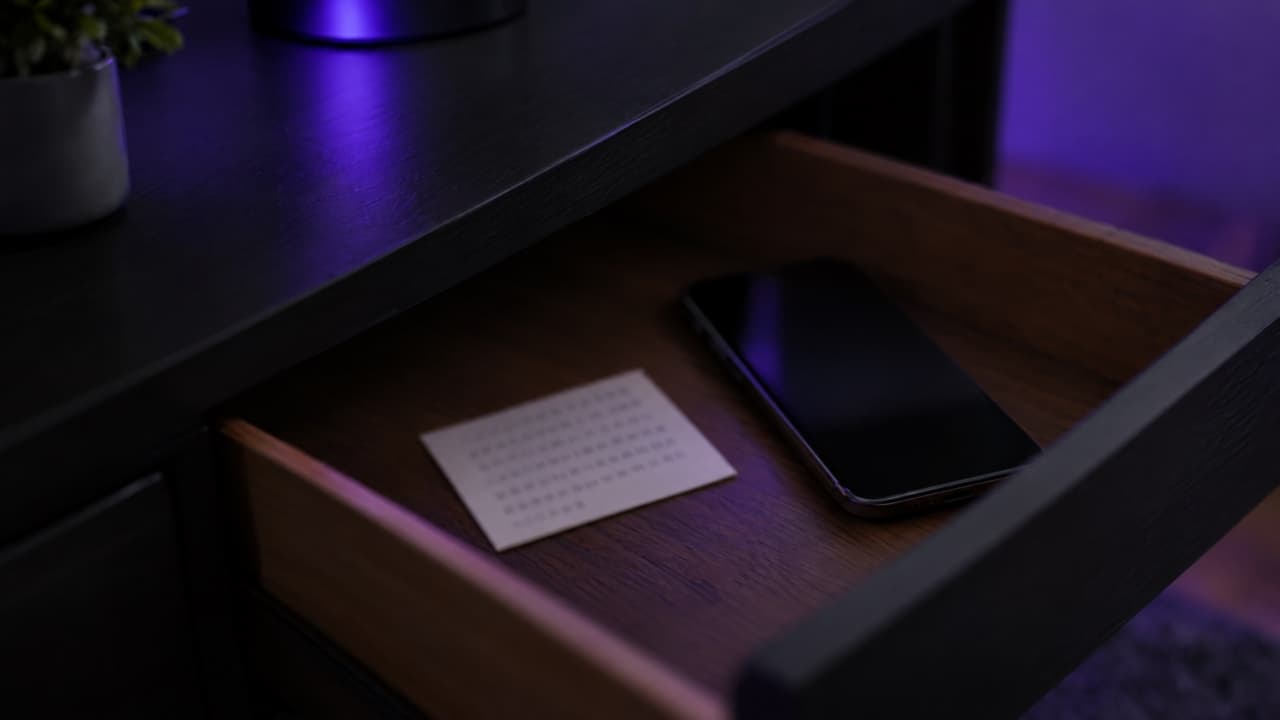
Backup codes are one-time codes for when you can't use your authenticator, for example after losing your phone. Instagram's help centre describes where to find them: Accounts Center → Password and security → Two-factor authentication → your account → Backup codes, where you can also get new ones (which cancels the old set).
- Each code works once.
- Store them away from your phone: printed at home or in a password manager.
- Don't keep them as a screenshot in your camera roll.
Instagram code not received?
- Using an authenticator app: codes don't "arrive", they're generated in the app. Check that the phone's time is set automatically (Settings → General → Date & Time); a wrong clock makes codes fail.
- Using SMS: wait a minute and request a new code, check that the phone number is current, and turn off any app that filters unknown messages.
- No access to either: use a backup code. Without one, follow the recovery prompts on the login screen; Instagram may ask for identity confirmation.
Getting a new phone
Before you reset your old phone, move the Instagram entry to the new authenticator, or switch Instagram to the new phone from the same Two-factor authentication screen. Our guide on how to move an authenticator to a new phone covers all accounts at once.
Use Ring as your Instagram authenticator
Ring works with Instagram and any service that supports authenticator apps. Scan the QR code, and Ring generates codes offline, behind Face ID, with a Home Screen widget for quick access. Codes are stored encrypted on your iPhone only, so keep Instagram's backup codes somewhere safe as well. No 2FA method makes an account impossible to break into, but an authenticator app stops the most common account takeovers.
FAQ
Can I use Google Authenticator for Instagram?
Yes. Instagram works with any app that generates standard 6-digit time-based codes, including Google Authenticator, Microsoft Authenticator and Ring.
What happens if I lose my phone with Instagram 2FA?
Sign in with a backup code, then set up 2FA again on your new phone. Without backup codes, follow Instagram's account recovery from the login screen.
Can I turn off two-factor authentication on Instagram?
Yes, from the same Two-factor authentication screen, but it makes your account much easier to take over. Switch methods instead if the current one is inconvenient.
Keep reading
 Ring••3 min read
Discord 2FA: How to Enable an Authenticator App and Save Backup Codes
Enable Discord two-factor authentication with an authenticator app, download backup codes, and fix 2FA codes that don't work or a lost phone.
 Ring••6 min read
Lost Your Phone with Your 2FA Codes? How to Get Back Into Your Accounts
Lost, stolen or reset the phone with your authenticator codes? Get back in with backup codes, signed-in devices and account recovery, then prevent a repeat.
 Ring••3 min read
How to Set Up Two-Factor Authentication with an Authenticator App
What TOTP codes are, why an authenticator app beats SMS, and how to turn on 2FA for any account in a few minutes without locking yourself out.