
Authenticator App vs SMS vs Passkeys: Which 2FA Method Should You Use?
SMS, email, authenticator apps, push prompts, security keys and passkeys compared: how each handles phishing and SIM swaps, and which to use for each account.
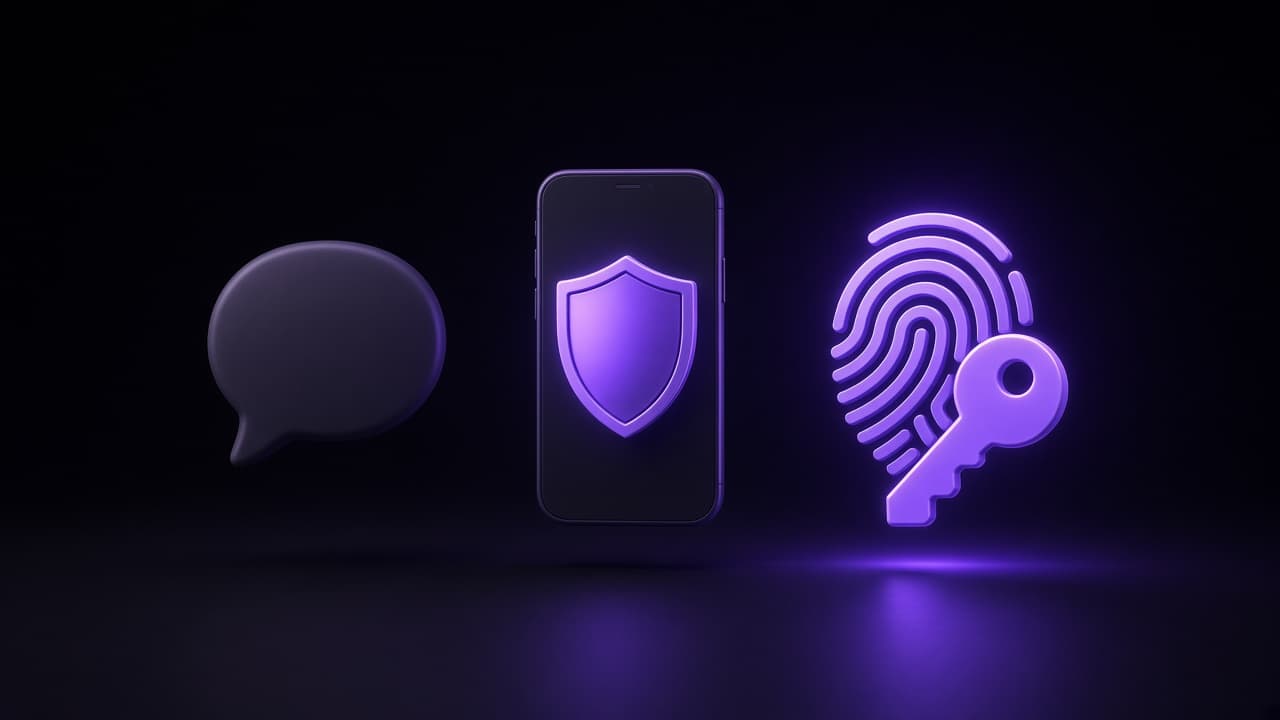
Two-factor authentication is not one thing. A text message with six digits, a code in an authenticator app, a "Was this you?" prompt and a passkey all count as a second factor, but they protect you against very different attacks. Here is how the common methods compare and which one makes sense for which account.
The attacks that matter
Most account takeovers start with one of three things:
- Password reuse. A password leaked from one site gets tried on every other site. Any second factor stops this on its own.
- Phishing. A fake login page collects your password and, increasingly, your one-time code too, then replays both to the real site within seconds.
- SIM swap. An attacker convinces your mobile carrier to move your number to a SIM they control. From then on, your texts and calls go to them.
A good second factor should also hold up against the last two. That's where the methods start to differ.
SMS codes
The service texts you a code and you type it in.
- Pros: works on any phone, nothing to install, and easy to keep when you get a new phone with the same number.
- Cons: exposed to SIM swaps and number porting, codes can show up in lock screen previews, and they are as easy to phish as a password. Delivery can also fail abroad or without signal.
NIST's digital identity guidelines classify SMS and voice as a restricted authenticator because of these risks (SP 800-63B). SMS is still far better than a password alone, and for some banks it's the only option. If you rely on it, ask your carrier whether you can add a PIN or port-out protection to your account.
Email codes
A code or a magic link sent to your inbox.
- Pros: universal and familiar.
- Cons: only as strong as your email account, and useless as a second factor for that email account itself. Whoever gets into your inbox gets the codes for every site that relies on it.
The same NIST guidelines say email must not be used for out-of-band authentication, because it doesn't prove you hold a specific device. Treat email codes as a recovery channel rather than real 2FA.
Authenticator apps (TOTP)
An app on your phone generates a new code every 30 seconds from a secret it shares with the service, usually delivered as a QR code. The algorithm is the open TOTP standard, so one app works with thousands of services. If you haven't set one up yet, our step-by-step 2FA setup guide walks through it.
- Pros: not affected by SIM swaps, works offline, free, and supported almost everywhere that offers 2FA.
- Cons: a convincing fake site can still ask for the code and relay it in real time, and if the secrets live on one phone only, losing it means going through account recovery.
An app like Ring keeps the secrets encrypted on your iPhone and generates codes without a network connection, so there is nothing to intercept in transit and nothing tied to your phone number. It doesn't make you immune to phishing, though: check the address bar before you type a code.
Push approvals
Instead of a code, the service sends a prompt to an app or a signed-in device, and you tap Approve.
- Pros: very convenient, and good implementations show where the login attempt comes from.
- Cons: each push system usually works only for its own vendor's accounts, and attackers abuse it with "MFA fatigue": triggering prompt after prompt until someone taps Approve just to make them stop.
Number matching, where you enter a number shown on the login screen into the prompt, makes blind approvals much harder. Either way, the rule is simple: never approve a prompt you didn't start yourself.
Hardware security keys
A small USB or NFC key that you plug in or tap against your phone. Modern keys use the FIDO2 and WebAuthn standards.
- Pros: phishing-resistant. The key signs a challenge tied to the real website's domain, so a fake site gets nothing it can reuse. Nothing to type, no battery, no network.
- Cons: costs money, you need at least two so one can be a spare, and not every service supports them. Lose both and you're back to account recovery.
CISA's guidance names FIDO/WebAuthn as the widely available form of phishing-resistant MFA and urges organizations to move toward it (CISA fact sheet).
Passkeys
Passkeys are built on the same FIDO standards as security keys, but the credential lives on your phone or in your password manager and is unlocked with Face ID, Touch ID or your device passcode. On many sites they replace the password entirely instead of adding a second step (FIDO Alliance).
- Pros: phishing-resistant like a hardware key, nothing to remember or type, and synced passkeys follow you to a new device through your credential manager.
- Cons: support is still uneven across services, your security depends on the account that syncs them, and using them across different platforms and browsers can be confusing.
Where a site offers passkeys and you use a credential manager you trust, they are the strongest convenient option available today.
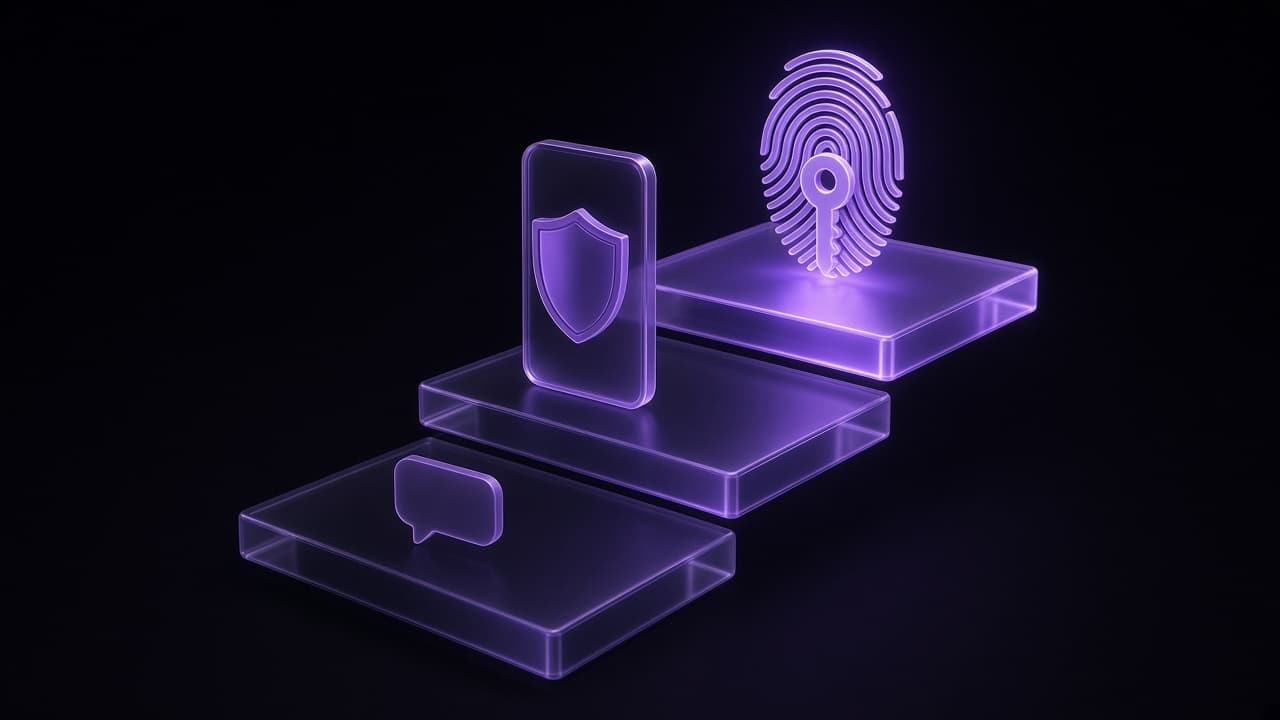
Which method to use for which account
Use the strongest method each service offers, but don't let perfect get in the way of good:
- Main email, password manager, Apple Account or Google Account. These can reset everything else. Use passkeys or security keys where supported, and keep recovery codes or a second method as a backup.
- Work accounts. Follow your employer's policy. Many organizations now require security keys or passkeys.
- Crypto exchanges and brokerages. An authenticator app or a security key. Avoid SMS wherever you have a choice.
- Banks. Many offer only SMS or their own app. Use the bank's app if there is one, and protect your phone number with your carrier.
- Social networks, developer tools, cloud storage, shopping. An authenticator app is the sweet spot.
- Anything that only offers SMS. Turn it on anyway. It still stops password-reuse attacks.
Why an authenticator app is the practical default
Passkeys and hardware keys resist phishing better, and you should use them on your most important accounts wherever they're available. But the method you can turn on almost everywhere, for free, without buying hardware or committing to one platform, is still TOTP. It removes the SIM-swap risk of SMS, doesn't depend on your inbox and works offline.
The tradeoff to plan for is losing the device. Save recovery codes for every account, add a second method on the important ones, and read what to do if you lose your phone with your 2FA codes on it before you ever need it. No method makes an account unbreakable, but a well-chosen second factor makes yours a much harder target than the next one.
Keep reading
 Ring••3 min read
How to Set Up Two-Factor Authentication with an Authenticator App
What TOTP codes are, why an authenticator app beats SMS, and how to turn on 2FA for any account in a few minutes without locking yourself out.
 Ring••6 min read
Lost Your Phone with Your 2FA Codes? How to Get Back Into Your Accounts
Lost, stolen or reset the phone with your authenticator codes? Get back in with backup codes, signed-in devices and account recovery, then prevent a repeat.

 Photo Wash••3 min read
How to Organize iPhone Photos by Country and City
Your iPhone already knows where most of your photos were taken. Here's how location data works, why some photos have none, and how to turn years of pictures into albums by place.