
How to Free Up iPhone Storage Without Losing Photos
Storage full doesn't have to mean deleting memories. See what's really using space on your iPhone, clear the clutter, and use iCloud Photos the right way.
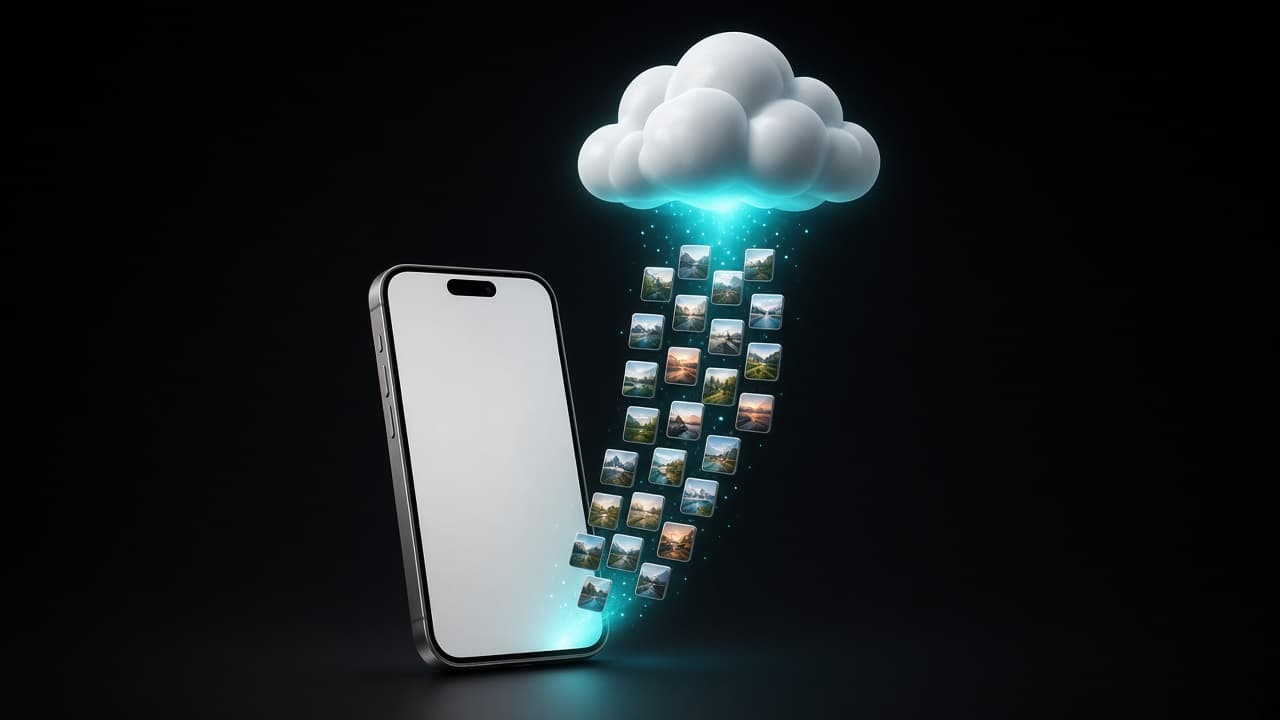
The "iPhone Storage Almost Full" message tends to show up at the worst possible moment, usually right before you want to take a photo. Photos and videos are often the biggest category on the device, but deleting them at random is exactly how memories get lost. A better order is: measure, back up, clear the real clutter, and only then let iCloud take care of the rest.
Check what's actually using space
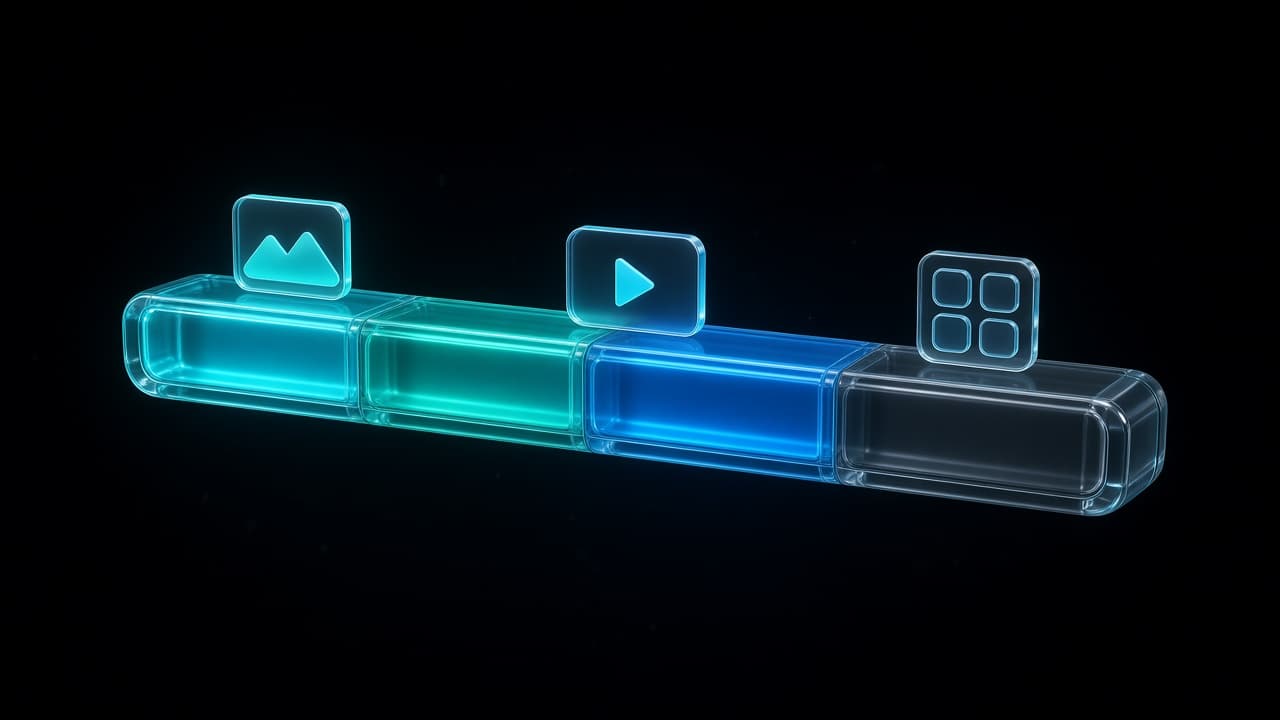
Open Settings → General → iPhone Storage. After a few seconds of calculating, you'll see a colored bar showing how storage is split between apps, photos, messages and the system, followed by recommendations and a list of apps sorted by size. Apple explains the screen in detail in its guide on how to check the storage on your iPhone.
Look at two things:
- How much Photos takes. Tap it in the list to see the exact size. If it's a small slice, deleting photos won't help much, and you should start with apps or messages instead.
- The recommendations. iOS suggests specific actions based on how you use the phone, such as offloading unused apps or reviewing large attachments in Messages. They're often the quickest wins.
Back up before you delete anything
Cleaning up is safe only if there's a copy of what matters. A few options:
- iCloud Backup. Turn it on in Settings → [your name] → iCloud → iCloud Backup and tap Back Up Now before a big cleanup. If iCloud Photos is on, your photos are already stored in iCloud and aren't included in the backup itself.
- A computer. Back up the iPhone with Finder on a Mac or the Apple Devices app on Windows, or import your photos and videos to the computer directly.
- An external drive. Useful for large video collections you rarely look at but don't want to lose.
One important detail: iCloud Photos is sync, not backup. If you delete a photo on your iPhone, it's deleted from iCloud and your other devices too. A separate copy is what protects you from mistakes.
Clean up duplicates, blurry shots and screenshots
This is the part that frees space without costing you a single memory, because none of these photos are ones you'd miss.
- Duplicates. The Photos app collects them in the Duplicates album in the Utilities section, available since iOS 16. Merging keeps the best version and removes the copies. Our guide on how to find and delete duplicate photos on iPhone walks through it, including bursts.
- Similar and blurry shots. The built-in album doesn't catch near-identical photos or out-of-focus ones. Photo Wash finds similar photos and duplicates and flags blurry, low-quality images, all on your device. You review every suggestion, and nothing is deleted automatically. It works inside albums sorted by place, so you can clean up one trip at a time.
- Screenshots. Open the Screenshots album under Media Types in Photos. Old boarding passes, delivery codes and screenshots of chats usually make up a big part of it. Tap Select and drag your finger across the grid to pick many at once.
Go after large videos
Video is where storage really goes. A few minutes of 4K footage can take as much space as hundreds of photos, so a handful of long clips may matter more than months of pictures.
Open the Videos album under Media Types and look for long recordings, accidental clips filmed from a pocket, and videos you've already shared or copied somewhere else. If you want to keep a video but not on the phone, move it to a computer or drive first, then delete it from the iPhone.
To keep the problem from coming back, check Settings → Camera → Record Video. The screen shows approximately how much space a minute of video takes in each format, so you can pick a lower resolution for everyday clips and save 4K for the moments that need it. It's also worth confirming that Settings → Camera → Formats is set to High Efficiency, which stores photos and videos in smaller files than Most Compatible.
Empty Recently Deleted
Deleted photos and videos aren't really gone yet. They move to the Recently Deleted album in the Utilities section of Photos and stay there for about 30 days before being deleted permanently. Until then, they still take up storage.
Once your backup is in place and you're sure about what you removed, open Recently Deleted (it unlocks with Face ID, Touch ID or your passcode), take a last look, and delete everything. This step is final, so don't rush it.
Use iCloud Photos with Optimize iPhone Storage
If your library is simply bigger than your iPhone, this is the setting that solves it for good. Go to Settings → [your name] → iCloud → Photos, turn on syncing for this iPhone, and choose Optimize iPhone Storage.
Here's how it works:
- Full-resolution originals are stored in iCloud.
- Your iPhone keeps smaller, device-sized versions when it needs space. They look the same on the screen and take up much less room.
- Originals are downloaded when you need them, for example when you open a photo to edit it. That requires an internet connection.
There's one condition: your iCloud storage needs to fit your whole library. The free plan includes 5 GB, which isn't enough for most libraries, so you may need an iCloud+ plan. Before deleting anything on the device or relying on the optimized versions, wait until the upload is finished. The alternative option, Download and Keep Originals, keeps everything on the iPhone and doesn't save space.
Offload apps you don't use
Back in Settings → General → iPhone Storage, tap any app to see two options:
- Offload App removes the app but keeps its documents and data. Reinstall it later and you pick up where you left off, as long as it's still available in the App Store.
- Delete App removes the app and its data entirely. Use it for apps you'll never open again.
To let iOS handle this automatically, turn on Settings → App Store → Offload Unused Apps. Apps you haven't used in a while are offloaded when storage runs low.
A safe order of operations
- Check Settings → General → iPhone Storage to see what's really using space.
- Back up the iPhone and your photos.
- Remove duplicates, blurry shots and old screenshots.
- Move or delete large videos you don't need on the phone.
- Empty Recently Deleted once you're sure.
- Turn on Optimize iPhone Storage if your iCloud plan fits your library.
- Offload apps you don't use.
Done in this order, you get your space back and keep every photo that matters.
Keep reading
 Photo Wash••6 min read
How to Find and Delete Duplicate Photos on iPhone
Exact duplicates, similar shots and bursts need different fixes. Here's how to use the iPhone Duplicates album, catch what it misses, and pick the right keeper.
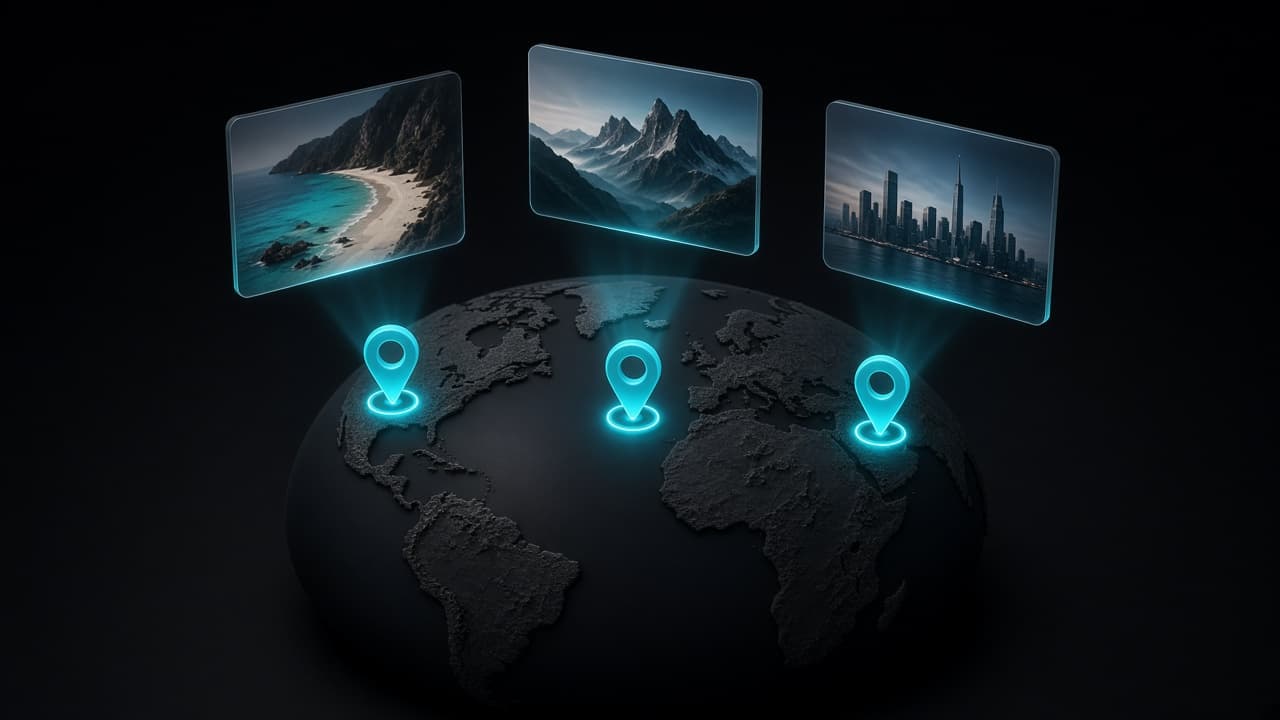 Photo Wash••3 min read
How to Organize iPhone Photos by Country and City
Your iPhone already knows where most of your photos were taken. Here's how location data works, why some photos have none, and how to turn years of pictures into albums by place.
 Bear Bite••6 min read
How to Estimate Portion Sizes Without a Food Scale
No food scale? Use your hand, everyday objects and a few simple habits to estimate portions well enough for calorie tracking, and find the hidden calories.