
How to Find and Delete Duplicate Photos on iPhone
Exact duplicates, similar shots and bursts need different fixes. Here's how to use the iPhone Duplicates album, catch what it misses, and pick the right keeper.
Duplicates pile up quietly. You save the same picture from a chat twice, import an old backup on top of your library, or take eight versions of the same sunset. None of them looks like a problem on its own, but together they make the library harder to browse and eat storage you could use for something else.
The right fix depends on what kind of "duplicate" you're dealing with, so it helps to tell them apart first.
Three kinds of duplicates
- Exact duplicates. The same image stored twice: a photo saved again from Messages, a picture imported twice from a computer, or a copy made with Duplicate in the Photos app. This group also includes the same image in a different size or format, like an original and the compressed copy that came back from a messenger.
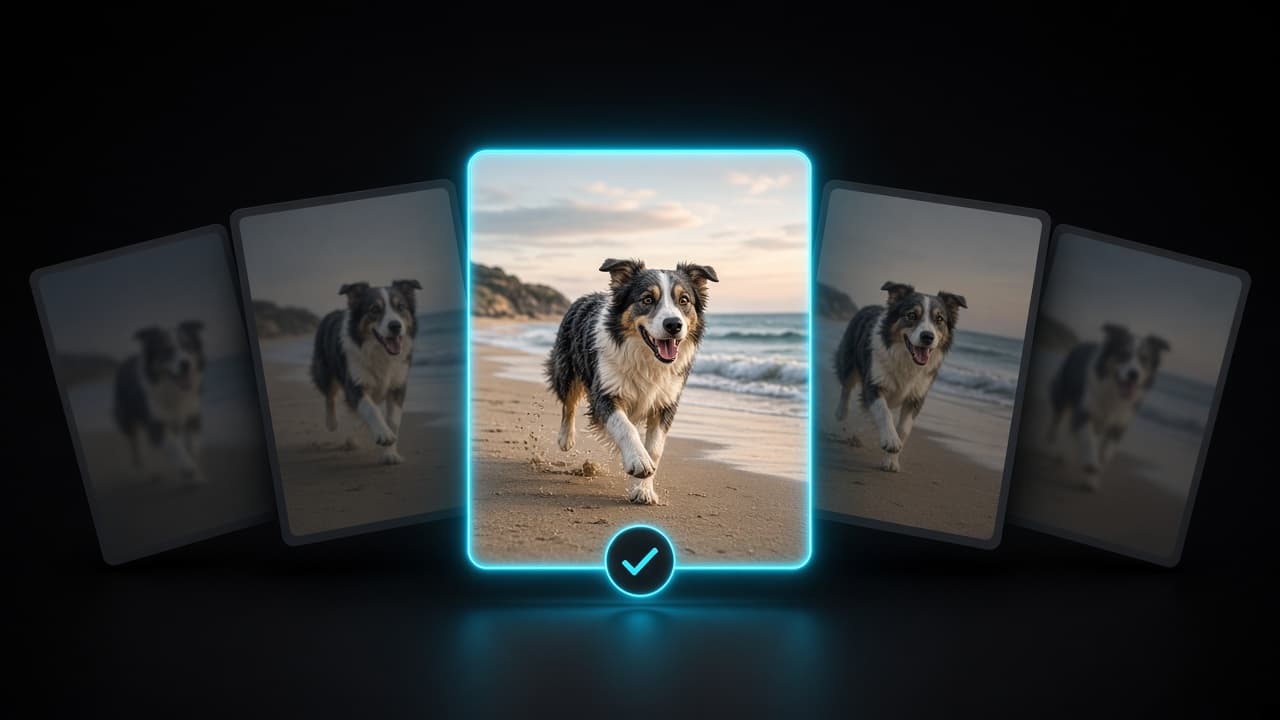
- Similar shots. Several genuinely different photos of the same moment. You tapped the shutter five times, moved a little to the left, or waited for someone to stop blinking. Usually only one or two of them are worth keeping.
- Bursts. A rapid series of frames captured in Burst mode. The Photos app shows a burst as a single stack, so it's easy to forget that every frame inside it takes up space.
Each kind needs a slightly different approach.
Start with the built-in Duplicates album
Since iOS 16, the Photos app detects duplicates on its own and collects them in a Duplicates album in the Utilities section. In older versions of iOS, Utilities is on the Albums tab; in iOS 18 and later, scroll down past your library to find it. If the album isn't there, Photos simply hasn't found any duplicates yet. Detection runs in the background and can take a while on a large library.
Inside, duplicates are shown side by side in groups. You have two options:
- Tap Merge next to a group to clean it up.
- Tap Select, choose several groups, and merge them in one go.
Merging keeps the highest-quality version, combines relevant data from the copies (such as captions, keywords and favorites) into it, and moves the rest to Recently Deleted. If you use iCloud Photos, the merge applies to your library on all your devices.
For exact duplicates this is the fastest and safest tool you have, so use it first.
What the Duplicates album misses
The Duplicates album is deliberately conservative: it only groups pictures it considers the same image. That's good for safety, but it leaves a lot behind:
- Similar shots aren't included. Five photos of the same group with slightly different expressions all stay in your library.
- Bursts are handled separately. Frames inside a burst don't show up as duplicates.
- Blurry photos are out of scope. A shaky, out-of-focus shot is unique, so nothing flags it.
- There's no context. Groups come from your entire library at once, which makes it hard to remember which version you actually liked.
In most libraries, similar shots and bursts take up far more room than true duplicates.
Bursts: keep the favorites, drop the rest
Open a burst in Photos and tap Select at the bottom of the screen. Swipe through the frames, tap the ones you want to keep so they get a checkmark, then tap Done. Choose the option to keep only your favorites, and the other frames go to Recently Deleted. If you're not sure, Keep Everything saves your picks as separate photos and leaves the burst intact.
Catch similar shots and blurry photos
This is the gap Photo Wash is built to fill. It finds similar photos and duplicates, and flags blurry and low-quality images, with all the analysis running on your iPhone. There are no accounts and no photo uploads.
It also lets you clean up inside a Geo Album, one trip or city at a time. That matters more than it sounds: when every photo in front of you is from the same afternoon in Rome, choosing the best shot takes seconds. If you haven't tried browsing your library by place yet, here's how to organize iPhone photos by country and city.
Nothing is deleted automatically. Photo Wash only suggests candidates; you review each group and decide what goes. Anything you remove lands in Recently Deleted, just like a photo deleted in the Photos app.
How to choose the keeper
When a group of similar shots is in front of you, a few quick checks make the decision easy:
- Sharpness first. Zoom in on the main subject. If the eyes or the key detail are soft, the shot is out, no matter how good the composition is.
- Expressions. Eyes open, nobody mid-word, everyone actually looking at the camera.
- Composition. A straight horizon, nothing important cut off at the edges, no stranger walking through the frame.
- The original over a copy. A photo straight from the camera usually has higher resolution and still carries its location. Copies saved from messengers often lose both.
- Your past self's vote. If you already edited or favorited one version, that's probably the one you liked.
When two shots are equally good, keep both. A second keeper costs very little; regretting a deleted photo costs more.
Recently Deleted is your safety net
Whatever tool you use, deleted photos and videos go to the Recently Deleted album in the Utilities section of Photos. They stay there for about 30 days and are then deleted permanently. Since iOS 16, the album is locked by default and opens with Face ID, Touch ID or your passcode.
To bring something back, open Recently Deleted, select the photos and tap Recover. They return to your library exactly where they were.
Two things to keep in mind:
- Storage isn't freed until the photos are gone from Recently Deleted. If space is the reason you're cleaning up, empty the album once you're confident. Our guide on how to free up iPhone storage without losing photos covers this and other steps.
- iCloud Photos syncs deletions. With iCloud Photos turned on, deleting a photo on your iPhone removes it from iCloud and your other devices too.
A routine that keeps duplicates under control
- Open the Duplicates album and merge the obvious groups.
- Go through your bursts and keep only the favorites.
- Work through similar shots and blurry photos one trip or one month at a time.
- Look through Recently Deleted before emptying it.
- Repeat after every big trip or import, while the moments are still fresh.
A few minutes after each trip beats one exhausting cleanup of ten years of photos.
Keep reading
 Photo Wash••6 min read
How to Free Up iPhone Storage Without Losing Photos
Storage full doesn't have to mean deleting memories. See what's really using space on your iPhone, clear the clutter, and use iCloud Photos the right way.
 Photo Wash••3 min read
How to Organize iPhone Photos by Country and City
Your iPhone already knows where most of your photos were taken. Here's how location data works, why some photos have none, and how to turn years of pictures into albums by place.

 Bear Bite••3 min read
How to Keep a Food Diary Habit Past Week Two
Most people stop logging meals within a couple of weeks. Here's how to make calorie tracking small enough to survive busy days, travel and the occasional pizza night.